Sparxsys QR Code for Jira — User Guide
Sparxsys QR Code for Jira adds scannable QR codes across Jira so you can jump from a screen to your phone (or share a link) in one scan. Generate codes for issues, boards, backlogs, projects, and dashboards, and let admins control where the issue QR code appears.
Table of contents
- Overview
- Installation
- For administrators
- For everyday users
- Permissions & data
- Troubleshooting
- FAQ
- Support
Overview
| Where | What you get |
|---|---|
| Issue | A QR code panel that links to the issue. Visible only on projects an admin has enabled. |
| Board | A board action that shows a QR code linking to the board. |
| Backlog | A backlog action that shows a QR code linking to the backlog. |
| Project | A project page with a QR code linking to the project. |
| Dashboard | A gadget that shows a QR code for a chosen filter, project, or board. |
Every QR code encodes a normal Jira URL. Scanning it with a phone camera (or any QR reader) opens that page in a browser — handy for sharing, printing on cards/wallboards, or moving from a big screen to mobile.
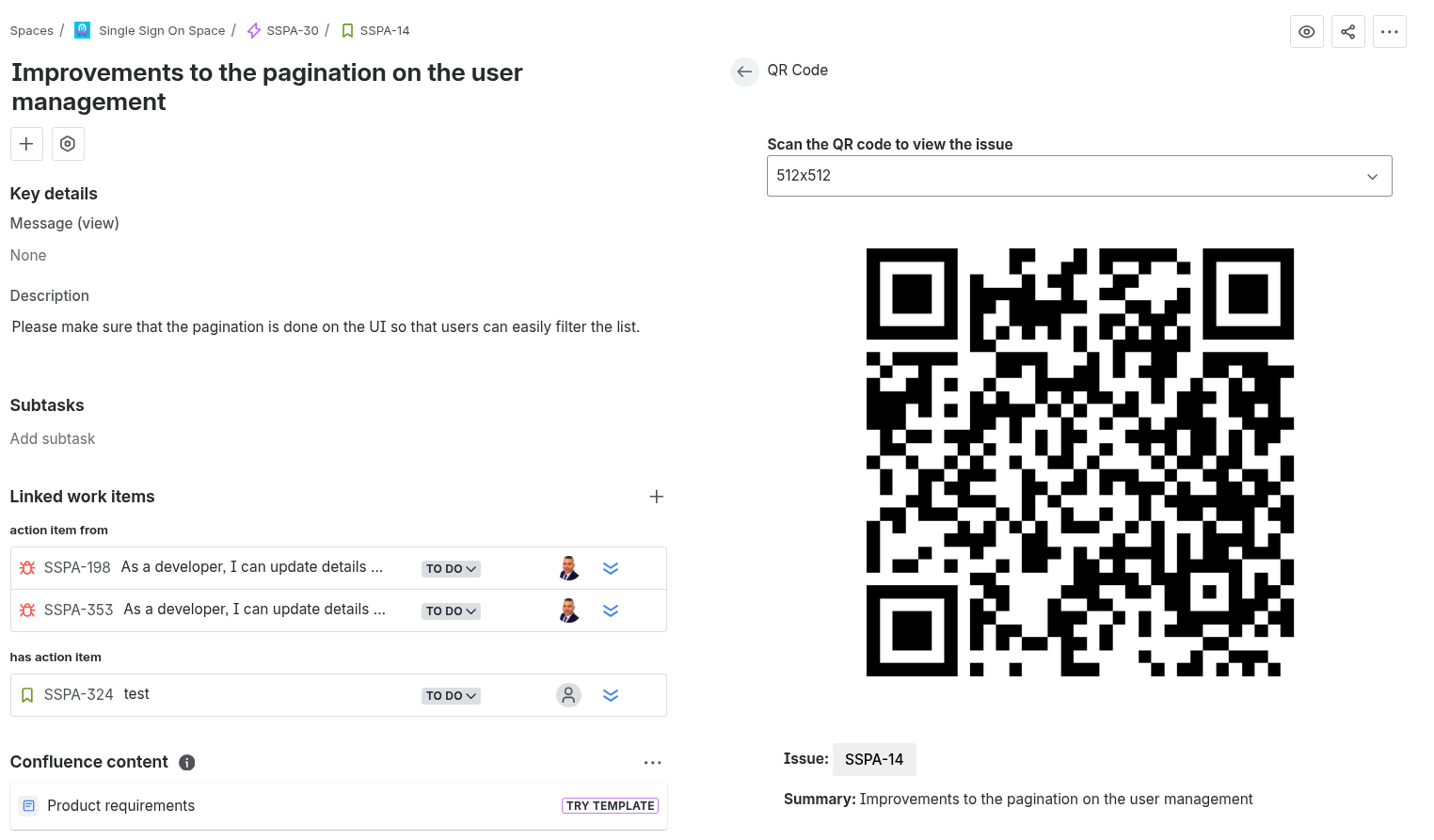 Caption: A QR code displayed on a Jira issue, being scanned by a phone.
Installation
- From the Atlassian Marketplace, choose Get it now / Try it free on the Sparxsys QR Code for Jira listing, or install it from Jira settings → Apps → Find new apps.
- Select your site and confirm the installation.
- Once installed, the QR code surfaces appear automatically. Admins should then review the Issue Glance Configuration to choose which projects show the issue QR code.
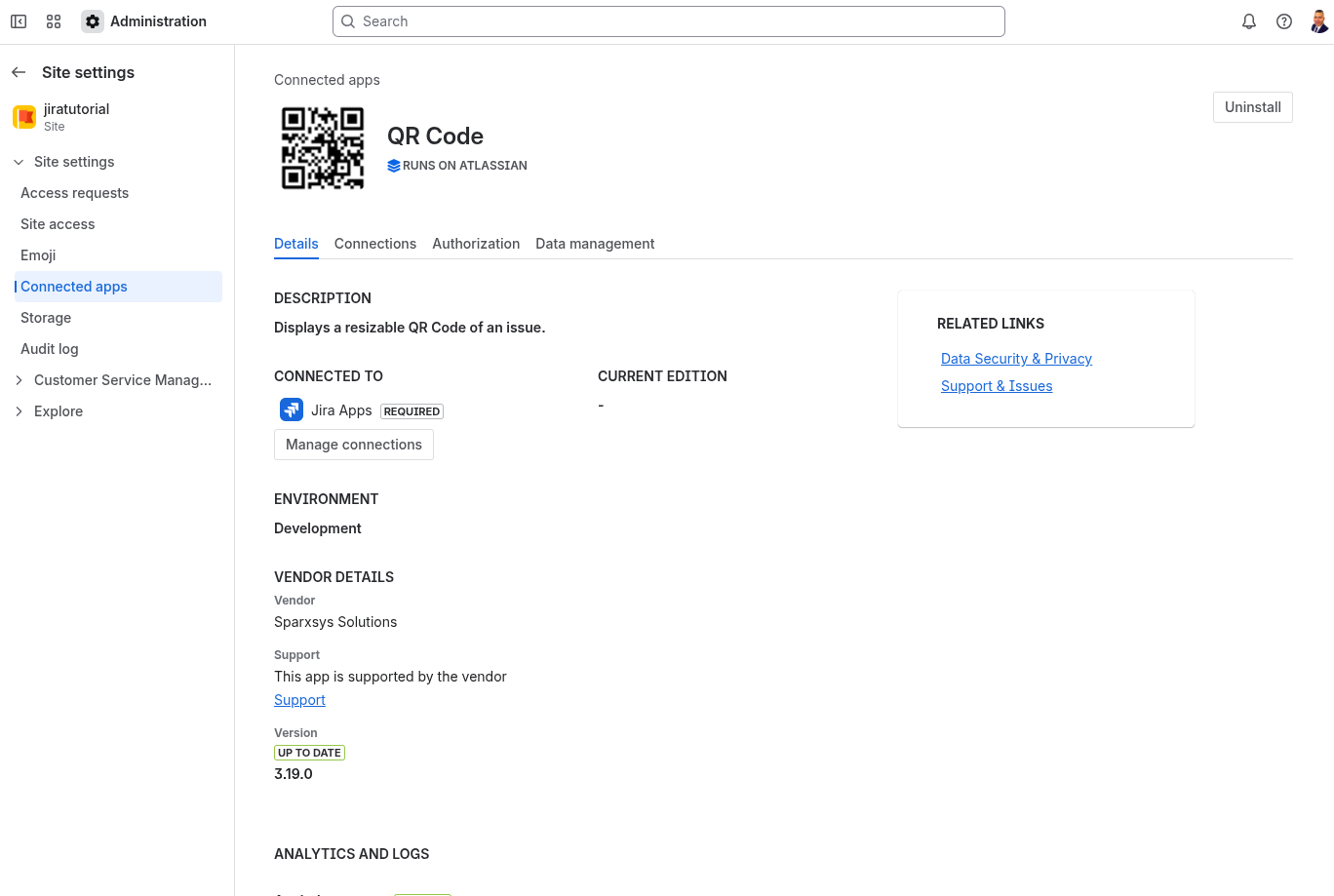 Caption: The "Add to Jira" / install confirmation screen.
For administrators
Issue Glance Configuration
By default the issue QR code is not shown on any project until you enable it. This page lets you choose exactly which projects display it.
Open the page: Jira settings → Apps → QR Code Admin → Issue Glance Configuration.
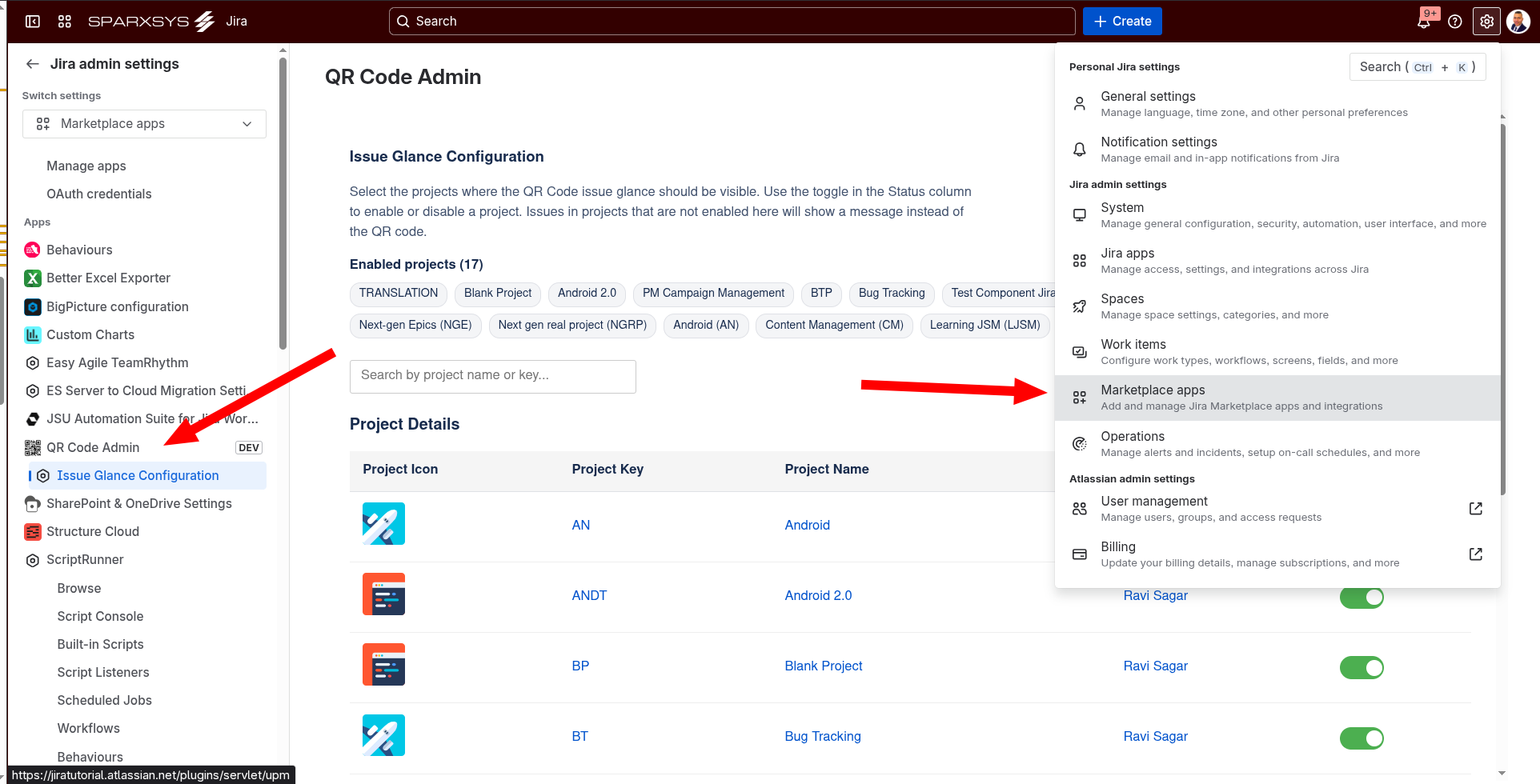 Caption: Navigating to QR Code Admin in Jira settings.
On the page you'll see:
- Enabled projects — a running list (with count) of every project where the issue QR code is currently visible. When none are enabled, you'll see a note explaining the glance is hidden everywhere.
- Search box — filter the project table by project name or key.
- Project table — every project with its key, name, lead, and a toggle.
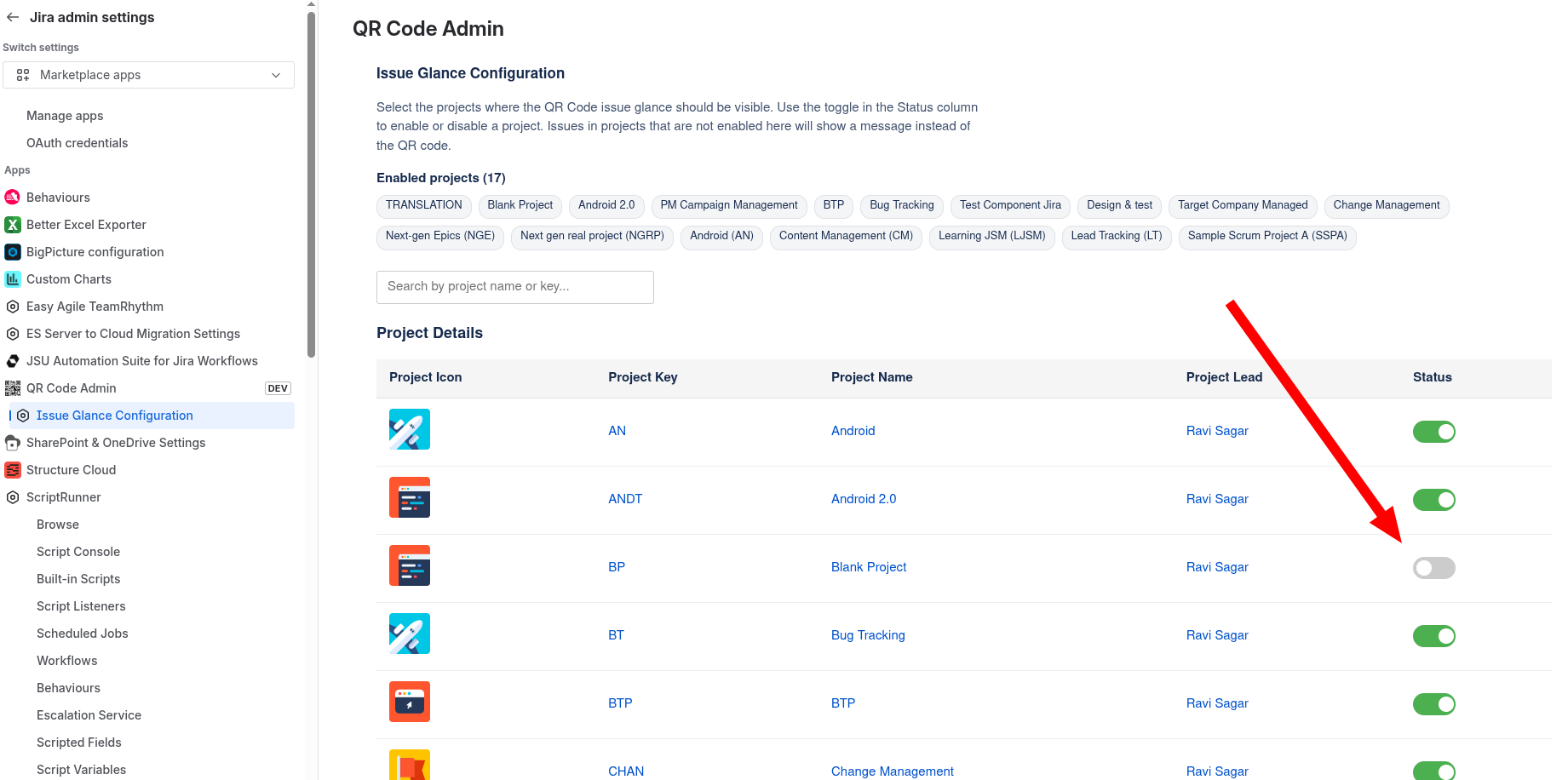 Caption: The configuration page showing the enabled-projects list, search box, and project table with toggles.
To enable the issue QR code for a project: find the project (use search if needed) and switch its toggle on. It immediately appears in the Enabled projects list.
To disable it: switch the toggle off.
Tip: Visibility is stored by the project's stable ID, so renaming a project does not break the setting — the QR code stays enabled.
For everyday users
Issue QR code (issue glance)
On any issue in an enabled project, open the QR Code glance. It shows a QR code that links to the issue, along with the issue key and summary. Use the size selector to make the code bigger for scanning from a distance.
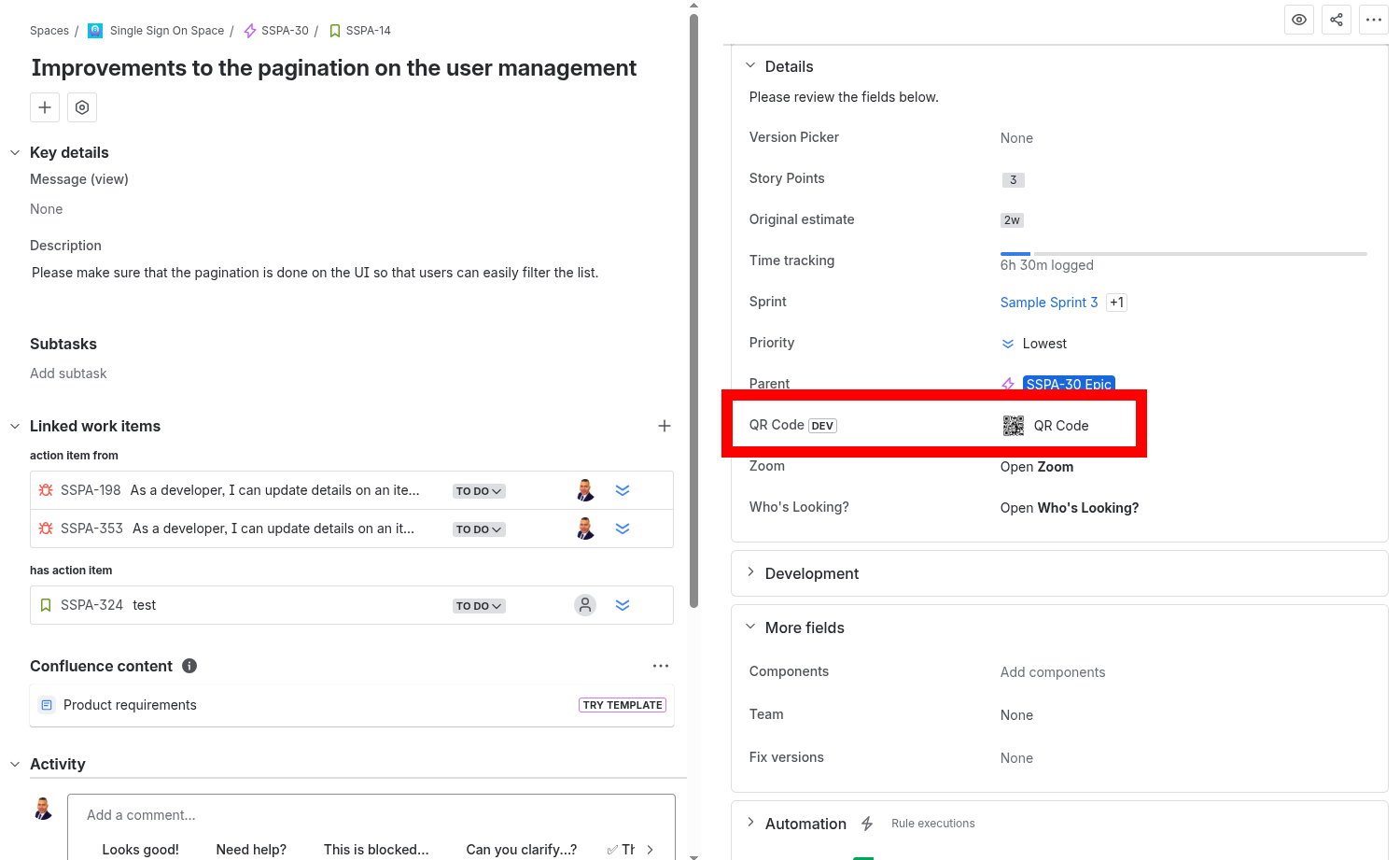 Caption: The QR Code glance open on an issue, showing the code, issue key, and summary.
If you see a message saying the QR code isn't enabled for this project, ask your Jira administrator to enable it (see Issue Glance Configuration).
Board QR code
From a board, open the QR Code action to display a QR code that links to the board. The board name is shown and is clickable.
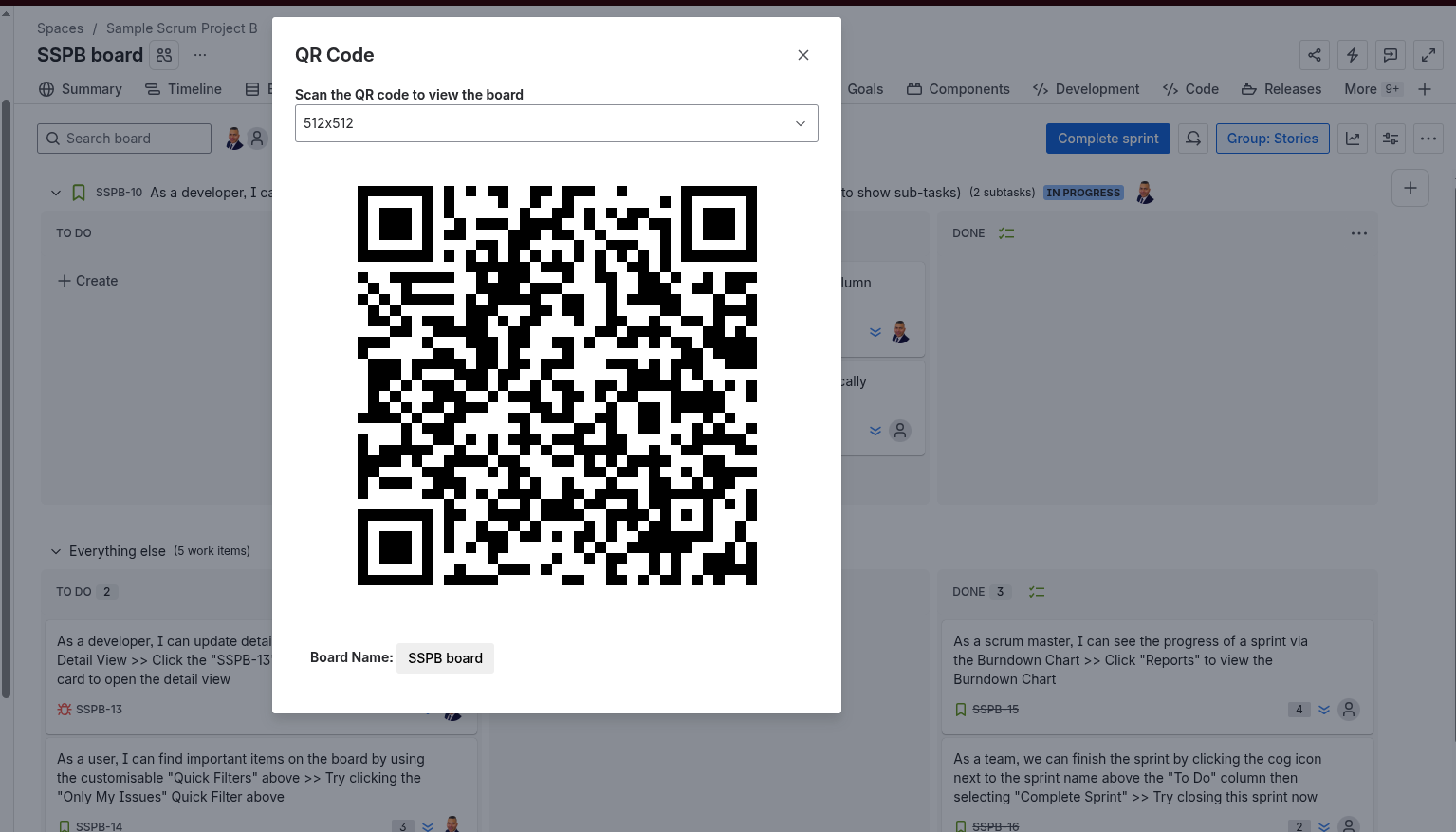 Caption: The QR Code action open on a board.
Backlog QR code
From the backlog, open the QR Code - Backlog action to display a QR code that links straight to the backlog view.
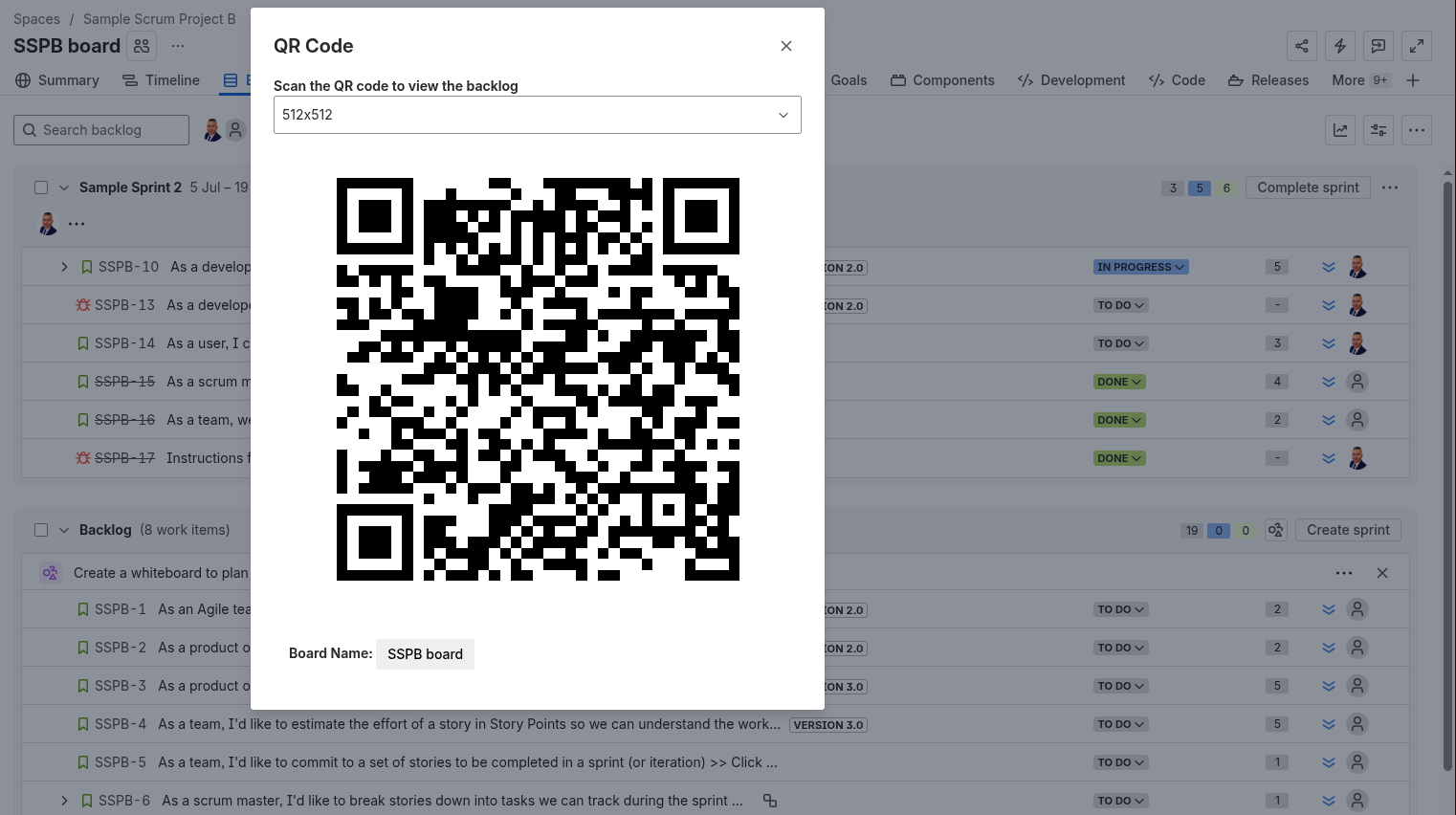 Caption: The QR Code action open on a backlog.
Project QR code
On a project, open the QR Code page to display a QR code that links to the project, with the project key and name shown.
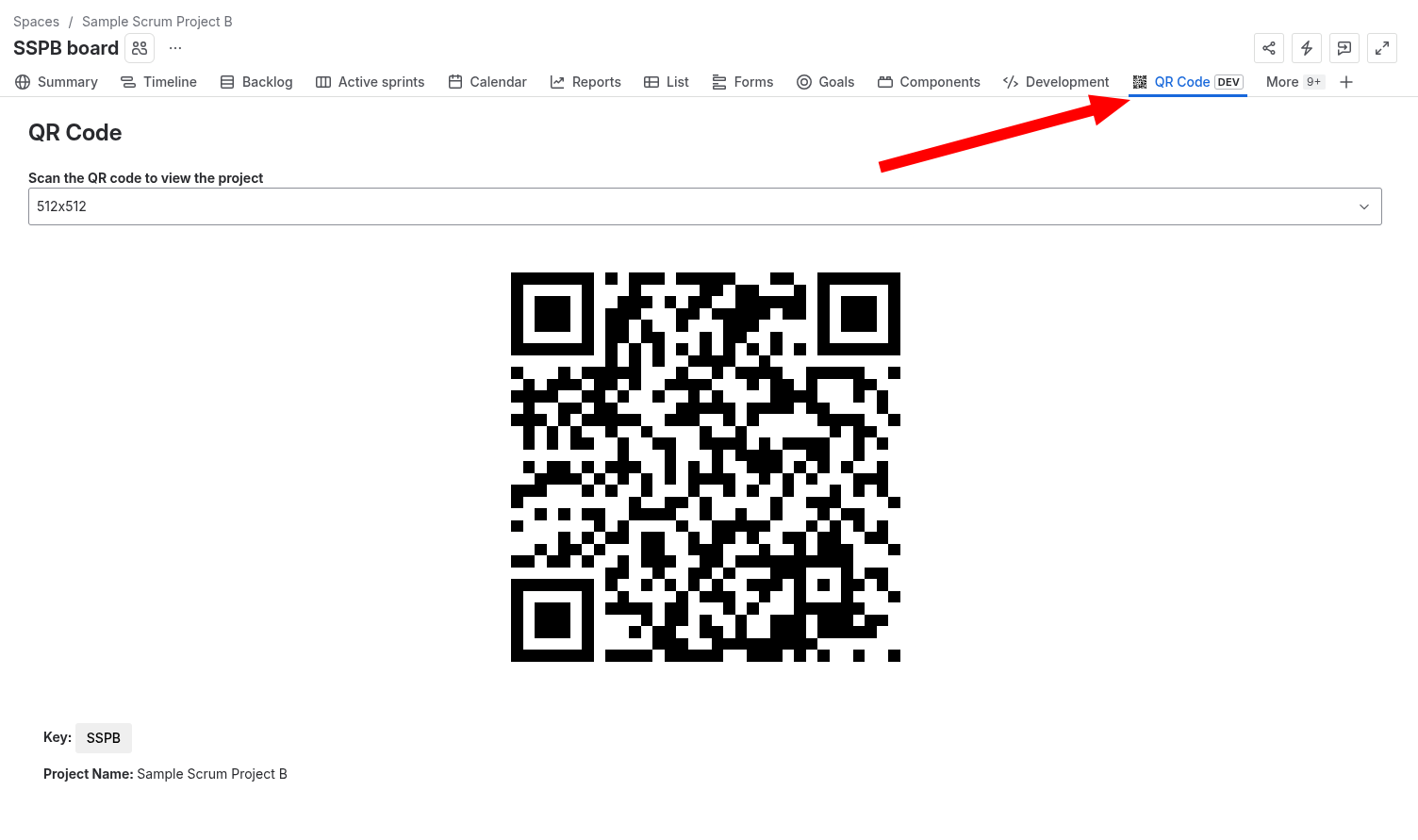 Caption: The QR Code project page.
Dashboard gadget
Add a QR Code gadget to any Jira dashboard to show a QR code for a specific filter, project, or board.
- Edit your dashboard and Add gadget, then choose QR Code.
- In the gadget's edit screen, pick a Type (Filter / Project / Board), search and select the item, and choose a size.
- Save. The gadget shows the QR code, the type, and a clickable link to the target.
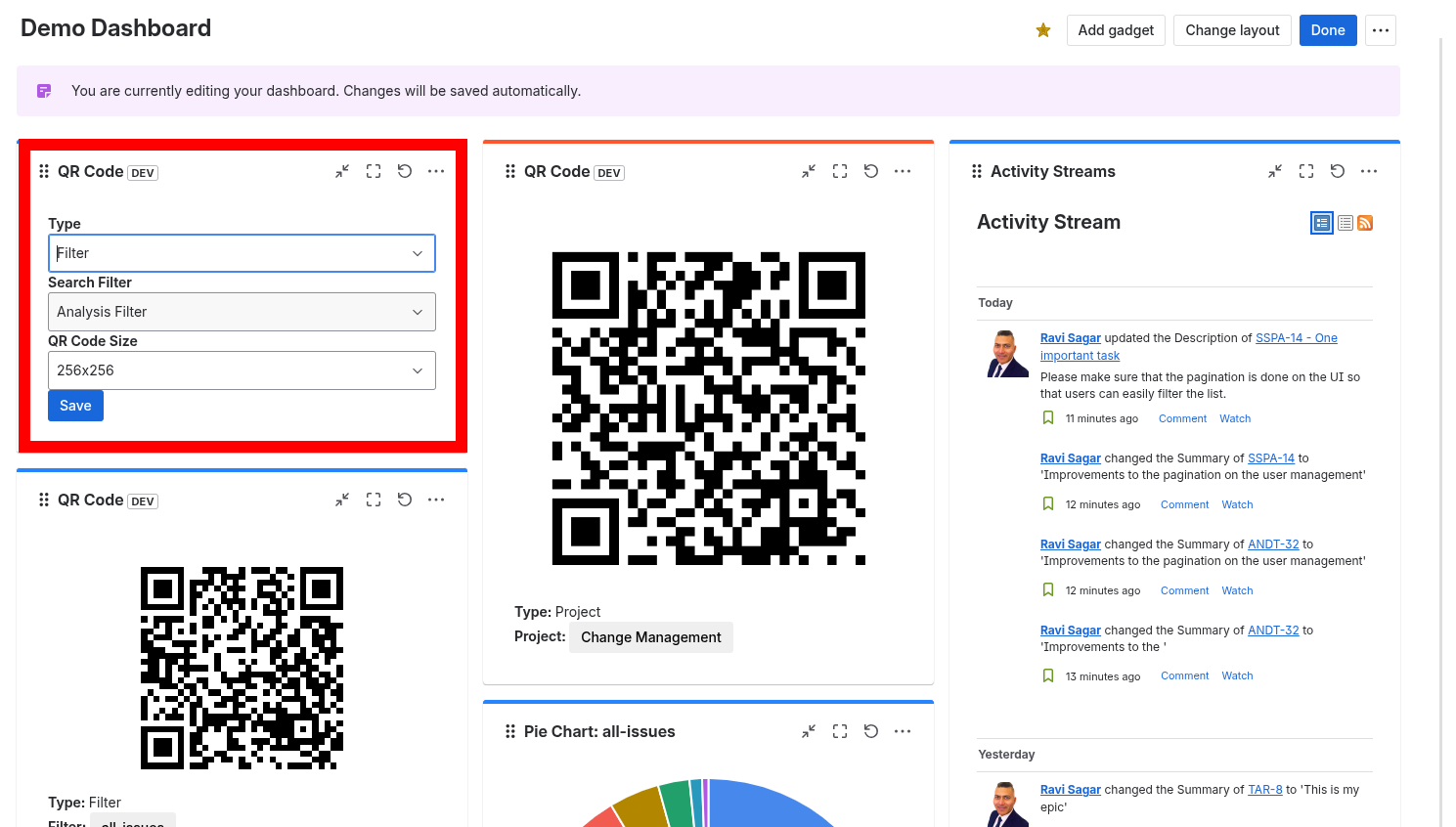 Caption: The gadget edit screen with Type, search, and size selectors.
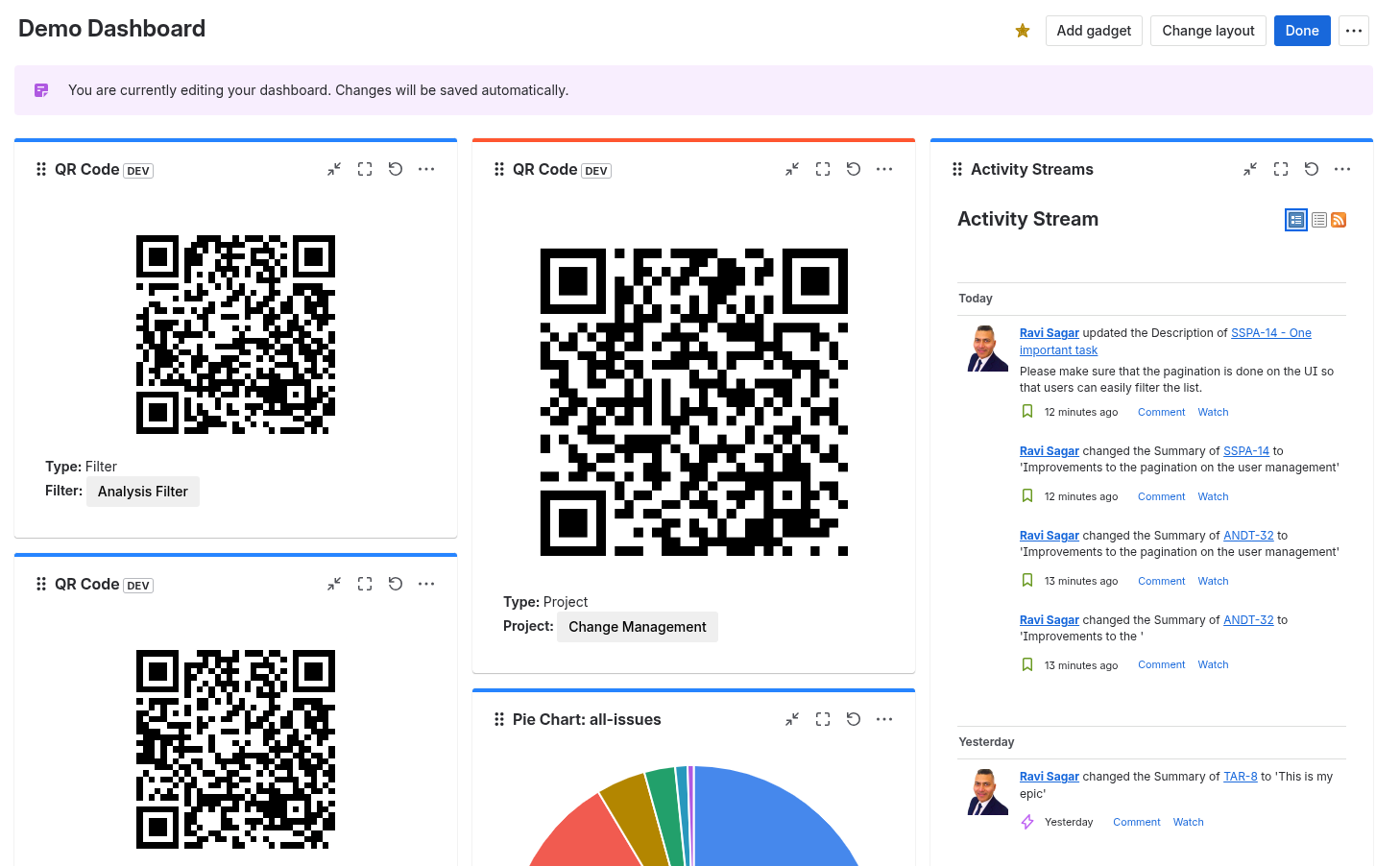 Caption: The configured gadget showing a QR code and its link.
Permissions & data
The app requests read-only access so it can build the correct links and labels:
- Read projects, boards, filters, issue details, and user (project lead) info.
- App storage — used only to remember which projects have the issue QR code enabled.
What leaves your site: nothing about your issues is sent anywhere. QR codes are generated inside Jira and simply encode a normal URL to your own Jira site. Scanning a code opens that URL; the viewer still needs Jira access to see the page.
Troubleshooting
| Problem | Likely cause & fix |
|---|---|
| The QR code glance isn't on an issue | The issue's project isn't enabled. An admin enables it in Issue Glance Configuration. |
| "Not enabled for this project" message | Same as above — ask your admin to toggle the project on. |
| A board/backlog QR says "Unable to load board information" | The board context couldn't be read; reload the page. If it persists, check the app is up to date. |
| Scanning opens a page I can't see | QR codes link to Jira pages that still require login/permissions. The scanner needs access to that issue/board/project. |
| Dashboard gadget says "Edit this gadget to configure" | The gadget hasn't been configured yet — edit it and pick a type + item. |
FAQ
Does scanning a QR code expose private data? No. The code only contains a link to a Jira page. Anyone scanning it still needs the right Jira permissions to view that page.
Can I control who sees the issue QR code? Admins control which projects show it via Issue Glance Configuration. Within an enabled project, visibility follows normal Jira permissions.
If I rename a project, do I have to re-enable it? No — the setting is tied to the project's ID, not its name.
Can I change the QR code size? Yes, on the issue/board/backlog/project surfaces there's a size selector, and the dashboard gadget has a size option in its edit screen.
Support
For help or feedback, contact the app vendor through the Atlassian Marketplace listing's Support link.